How to Connect a Dash Cam to Your Phone via WiFi
Want to view or download dash cam footage directly on your smartphone without removing the memory card? If your dash cam supports WiFi, you can connect it to your phone and access recorded videos through its dedicated app.
This guide explains how to connect a dash cam to your phone via WiFi, from preparing the dash cam and installing the app to viewing and downloading recorded footage. It also covers common connection problems and what to check when the WiFi connection does not work properly.
What Is a WiFi Dash Cam?
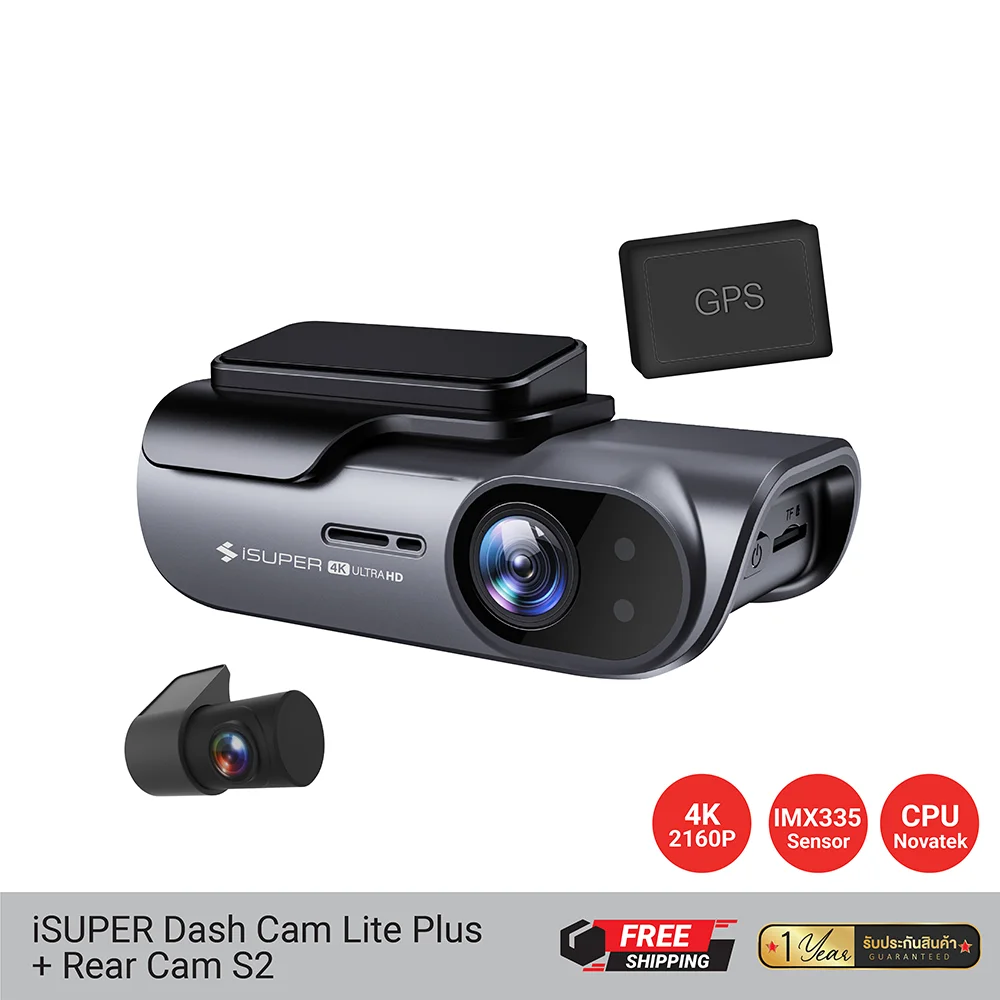
A WiFi dash cam has a built-in wireless connection that allows a smartphone to communicate directly with the camera.
Once connected, the smartphone can typically be used to:
- View recorded videos
- Download footage to the phone
- View the camera's live preview
- Change certain camera settings
- Manage or format the memory card, depending on the model
The important point is that Dash Cam WiFi does not necessarily mean the dash cam has Internet access. In many models, WiFi creates a direct connection between the camera and smartphone.
What You Need Before Connecting
Before starting, prepare the following:
- A dash cam that supports WiFi
- A smartphone running iOS or Android
- The manufacturer's dash cam application
- A memory card installed in the dash cam, if you want to view recorded footage
- The dash cam powered on
It is also a good idea to keep the dash cam and smartphone relatively close together during the initial connection.
How to Connect a Dash Cam to Your Phone via WiFi
Step 1: Turn on the Dash Cam
First, turn on the dash cam and make sure it is receiving stable power.
Some models allow WiFi to be enabled directly from the camera menu, while others use a dedicated WiFi button or shortcut.
Step 2: Enable WiFi on the Dash Cam
Open the dash cam settings and turn on its WiFi function.
The camera may display a WiFi network name and password on the screen. Some models provide the information through the user manual or a sticker supplied with the device.
Step 3: Install the Dash Cam App
Download the official application recommended by the dash cam manufacturer from the Apple App Store or Google Play Store.
Using the correct application is important because different dash cams may use different communication protocols and applications.
Step 4: Connect Your Phone to the Dash Cam WiFi
Open the WiFi settings on your smartphone and look for the WiFi network broadcast by the dash cam.
Select the dash cam's WiFi network and enter the password if required.
At this point, your phone may display a message saying that the WiFi network has no Internet connection. This is not necessarily a problem.
The WiFi connection may be designed specifically for communication between your phone and the dash cam rather than for accessing the Internet.
Step 5: Open the Dash Cam App
After connecting to the dash cam's WiFi network, open the manufacturer's application.
The app should detect the connected dash cam and provide access to functions such as live view, recorded videos, settings, and file downloads, depending on the model.
Step 6: View or Download Your Videos
Once the connection is successful, open the video or album section in the app.
You can normally select a recorded video and either play it directly or download it to your smartphone.
For large video files, downloading may take some time because dash cam footage can have relatively high resolutions and bitrates.
Does a WiFi Dash Cam Need Mobile Internet?
Usually, you do not need mobile Internet to connect your phone directly to a WiFi dash cam.
The dash cam creates its own WiFi network, and your smartphone connects directly to that network.
However, Internet access may still be required for other functions, such as downloading an application, updating cloud services, or using features that specifically depend on an Internet connection.
Can You Watch a Dash Cam Remotely?
This is where WiFi and 4G dash cams are different.
A typical WiFi dash cam is designed for short-range communication. You normally need to be near the vehicle to connect your phone to the camera.
If you want to monitor a vehicle while you are somewhere else, a dash cam with a 4G/LTE connection and remote-access functionality may be more suitable.
Therefore, WiFi should not automatically be interpreted as remote monitoring.
How to Know If the Connection Is Successful
After connecting your smartphone to the dash cam, check whether the following functions work:
- The dash cam appears in the manufacturer's app
- Live view works
- Recorded videos can be displayed
- Videos can be downloaded
- Camera settings can be accessed
If these functions work normally, the WiFi connection is most likely working correctly.
What to Do If Your Dash Cam WiFi Does Not Connect
Sometimes the phone can see the dash cam WiFi network but cannot establish a usable connection. Try these basic troubleshooting steps.
1. Turn WiFi Off and On Again
Disable WiFi on your smartphone, wait a few seconds, and enable it again.
2. Restart the Dash Cam
Turn the dash cam off and restart it. Then enable WiFi again and try connecting.
3. Check the WiFi Password
Make sure you are entering the correct password. Some dash cams use a default password that can be changed through the device settings.
4. Connect to the Correct WiFi Network
If there are several WiFi networks nearby, make sure your phone is connected to the network broadcast by the dash cam rather than your home or office router.
5. Open the App After Connecting
Some dash cam applications work correctly only after the smartphone has already connected to the camera's WiFi network.
6. Check App Permissions
Depending on the smartphone and application, permissions related to local network access, WiFi, Bluetooth, storage, or nearby devices may affect functionality.
Why Does WiFi Connect but the App Cannot Find the Dash Cam?
This is a common situation.
Your smartphone may successfully connect to the dash cam's WiFi network, but the manufacturer's app may still fail to detect the camera.
Possible causes include:
- The wrong application was installed
- The app does not have the required permissions
- The dash cam is connected to another phone
- The camera's WiFi function has timed out
- The app or dash cam firmware needs an update
- The smartphone automatically switched to another network
Try disconnecting other devices from the dash cam and reconnecting the smartphone from the beginning.
Does It Work on Both iPhone and Android?
Most modern WiFi dash cams support both iPhone and Android, but compatibility depends on the specific model and its official application.
Before purchasing a dash cam, check whether the manufacturer's application supports your smartphone's operating system and version.
Can More Than One Phone Connect to a Dash Cam?
This depends on the dash cam model.
Some cameras allow only one smartphone to connect at a time. Others may support multiple devices, but the exact functions and connection behavior can vary.
If you want to share footage with family members, check the manufacturer's specifications before purchasing.
Does Downloading Dash Cam Footage Use Mobile Data?
If your phone is connected directly to the dash cam's WiFi network, the video file is normally transferred locally from the camera to the smartphone.
This means downloading footage from the dash cam itself does not normally require mobile data.
However, smartphone network behavior can vary. If you want to avoid unexpected mobile data usage, check your phone's WiFi and mobile-data settings.
WiFi Dash Cam vs 4G Dash Cam
| Feature | WiFi Dash Cam | 4G Dash Cam |
|---|---|---|
| Connect to smartphone | Yes | Yes |
| View footage nearby | Yes | Yes |
| Remote viewing | Usually not | Supported on compatible models |
| Internet connection | Usually not required for direct connection | Required for remote communication |
| Complexity | Simple | More complex |
| Typical use | Viewing and downloading footage near the vehicle | Remote monitoring and connected-car functions |
Who Should Choose a WiFi Dash Cam?
A WiFi dash cam is a good choice if you frequently want to transfer footage to your phone without removing the memory card.
It is especially useful when:
- You want to quickly send an important video
- You need to check an incident at the roadside
- You want to download footage directly to your phone
- You do not want to remove the memory card frequently
- You want a simple way to manage camera settings
However, if your main goal is monitoring the vehicle while you are away from it, look beyond WiFi and consider models with 4G/LTE and remote-access capabilities.
Conclusion: WiFi Makes Dash Cam Footage Easier to Access
Connecting a dash cam to a smartphone via WiFi is generally straightforward: turn on the dash cam's WiFi, connect your smartphone to the camera's network, open the official application, and then access your videos.
The biggest thing to remember is that Dash Cam WiFi is usually a direct local connection, not the same thing as remote Internet access.
If you mainly want to view and download footage while standing near your vehicle, WiFi can be one of the most convenient features to have. If you need to check your vehicle from another location, however, a 4G-enabled dash cam may be a better fit.
Frequently Asked Questions
Can I connect a dash cam to my phone without Internet?
Yes. Many WiFi dash cams create a direct WiFi connection with your smartphone, so an Internet connection is not required for basic viewing and downloading of footage.
Why does my phone say the dash cam WiFi has no Internet?
This can be normal. The dash cam WiFi may be intended only for communication between the camera and your phone, rather than for Internet access.
Can I view my dash cam from home?
Usually not with a standard WiFi-only dash cam. Remote viewing generally requires a compatible 4G/LTE or cloud-connected system.
Can I download dash cam videos directly to my phone?
Yes. If the dash cam and its application support file downloads, you can transfer recorded videos directly to your smartphone through WiFi.
Why can I connect to the WiFi but cannot see the camera in the app?
Check that you installed the correct application, enabled the required permissions, and connected to the correct dash cam WiFi network. Restarting both the camera and smartphone can also help.